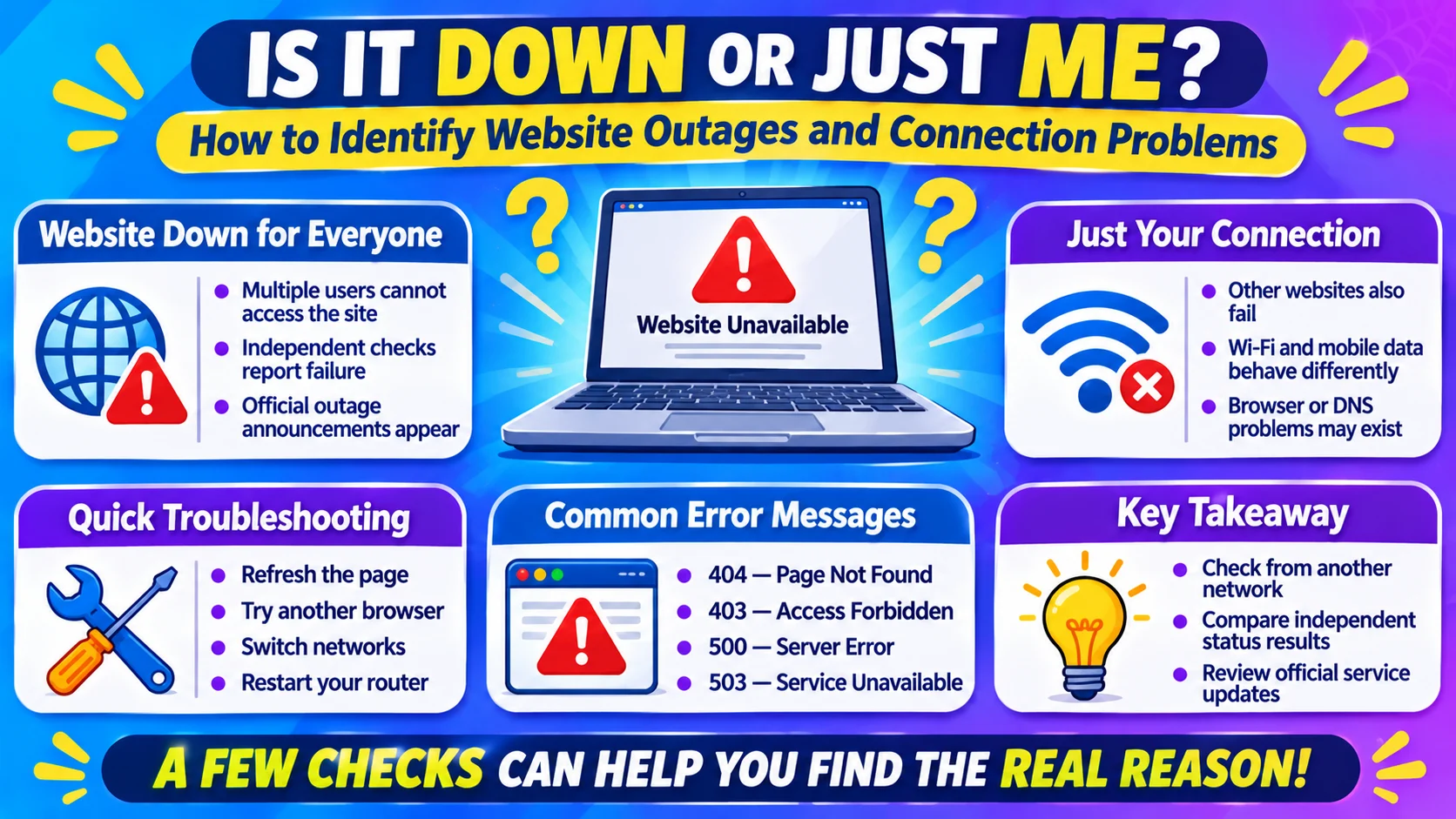
If a website will not load, it may be down for everyone or only for you. Check it with an independent outage checker, try another browser, and switch networks. If the site fails across different devices and connections, a wider outage is more likely.
Is it down or just me? This is a common question when a website, app, or online service suddenly stops working. Sometimes the website has a widespread outage. However, the problem may also come from your internet connection, browser, device, or network settings.
Fortunately, you can narrow down the cause with a few simple checks. First, test the website from another device or network. Next, compare the result with an independent website status checker. If the site works elsewhere, your connection or browser may be responsible. On the other hand, if it fails for multiple users, the service itself may be experiencing an outage.
This guide explains how to check website availability, identify common problems, and get back online.
What Does “Is It Down or Just Me?” Mean?
The phrase “Is it down or just me?” describes a situation where someone cannot access a website or online service and wants to know whether other people have the same problem.
For example, imagine opening a website and seeing a connection error. You might immediately wonder whether the server has stopped working. However, your internet connection or browser could be the real cause.
The phrase usually refers to two possibilities:
- Down for everyone: The website’s server or service has a problem affecting multiple users.
- Just you: Something on your device, browser, network, or internet connection prevents access.
Therefore, checking from another location is an important first step. A website that fails on your computer may still work perfectly for someone else.
How to Check If a Website Is Down for Everyone
You do not need advanced technical skills to check website availability. Instead, follow these simple steps to narrow down the problem.
1. Use an Independent Website Status Checker
An outage checker tests whether a website responds from a server outside your personal network.
Simply enter the website’s domain into a status checker. Then, review the result to see whether the service responds.
Depending on the checker, you may see:
- Website availability
- Server response time
- HTTP status codes
- DNS connection results
- Recent outage reports
- Regional availability information
However, one successful check does not guarantee that every feature works. For example, a website’s homepage may load while its login system remains unavailable.
2. Ask Someone Else to Open the Website
Another simple method is to ask a friend or family member to visit the same website.
If the site works for them but not for you, your device or connection may be responsible. Conversely, if several people experience the same issue, a wider service problem becomes more likely.
For better results, ask someone using a different internet provider or location.
3. Check the Service’s Official Status Information
Many online services publish updates when they experience technical problems.
These updates may explain:
- Active service disruptions
- Scheduled maintenance
- Login problems
- Payment processing issues
- Delayed notifications
- Recovery progress
Therefore, check the service’s official status information when available. It can provide more reliable details than random social media posts.
4. Search for Recent Outage Reports
User reports can help you identify problems affecting other people.
For instance, a sudden increase in reports may suggest that a website or app is experiencing difficulties. However, individual reports do not always confirm a widespread outage.
Compare the reports with official updates and independent checks before reaching a conclusion.
Signs a Website Is Down for Everyone
Sometimes, the problem clearly extends beyond one device. Several warning signs can help you recognize a wider outage.
| Sign | What It May Mean |
|---|---|
| Multiple users cannot access the site | Possible widespread outage |
| Several networks show the same error | Possible server problem |
| Status checker reports failure | Website may be unavailable |
| Official outage announcement appears | Service has confirmed an incident |
| Server returns a 5xx error | Possible server-side problem |
| Login and other features stop working | Possible partial service outage |
For example, a website may stop responding during heavy traffic. Similarly, a hosting provider may experience a technical failure that affects multiple websites.
Nevertheless, do not assume every error means a global outage. A regional network problem can also affect many users at once.
Signs the Problem Is Just You
If other people can access the website normally, investigate your own connection first.
The following signs often point to a local problem:
- The website works on another device.
- Mobile data works, but your Wi-Fi does not.
- The website opens in private browsing mode.
- Other websites load normally.
- Your browser displays a DNS or connection error.
- A VPN prevents the website from loading.
In addition, browser extensions, outdated cookies, and saved website data can interfere with access.
For this reason, test another browser before changing advanced network settings.
Why Is a Website Not Working?
A website can become unavailable for several reasons. Some problems originate on the server, while others happen between your device and the website.
1. Server Problems
A website depends on servers to deliver pages, images, and other content.
If a server crashes or becomes overloaded, visitors may receive an error instead of the expected page. Consequently, the website may become slow or completely unavailable.
2. Internet Connection Problems
Your internet connection may be unstable or disconnected.
For example, your router may lose its connection to your internet provider. Similarly, weak Wi-Fi signals can interrupt communication with websites.
Therefore, check whether other websites load before assuming that one particular service is down.
3. DNS Errors
DNS stands for Domain Name System. It helps your device find the server associated with a website’s domain name.
If DNS cannot resolve the domain correctly, your browser may display an error. In that case, the website might still be working for people using different DNS servers.
4. Browser Cache and Cookies
Browsers save website information to make future visits faster. However, outdated or damaged saved data can sometimes cause loading problems.
As a result, a website may fail in your normal browser but work in a private window.
5. VPN or Firewall Restrictions
A VPN changes the network route and apparent location used to access a website.
Some websites restrict certain VPN connections. Likewise, firewalls and security filters may block specific domains or services.
Therefore, compare your connection with and without the VPN if you use one. Also, check whether your network administrator has applied access restrictions.
6. Website Maintenance
Website owners sometimes temporarily disable services to install updates, repair problems, or improve performance.
During maintenance, some pages may remain available while others stop working. In addition, the service may display a maintenance message.
Usually, the website returns after the scheduled work finishes.
How to Fix a Website That Will Not Load
If an outage checker says the website is available, try these practical troubleshooting steps.
1. Refresh the Page
Start with a simple page refresh. Sometimes, a temporary loading problem disappears after another request.
However, avoid repeatedly refreshing a website that is already reporting a server error.
2. Open the Website in Another Browser
Try another browser to see whether the problem is limited to your current one.
If the website works elsewhere, your original browser may have an extension, cookie, or cache issue.
3. Use Private or Incognito Mode
Private browsing opens a separate browser session without using your normal browsing history and existing site cookies in the same way.
If the website loads in this mode, investigate your saved site data and extensions. For example, temporarily disable extensions one at a time to identify a possible conflict.
4. Switch Between Wi-Fi and Mobile Data
This test helps identify network-related problems.
First, open the website using Wi-Fi. Next, turn off Wi-Fi and try mobile data.
If the site works on mobile data but not Wi-Fi, your router, DNS settings, internet provider, or network filtering may be involved.
5. Restart Your Router
A router restart can resolve temporary connection problems.
Turn off the router, wait briefly, and then turn it back on. After the connection returns, try opening the website again.
However, remember that restarting the router will not fix a confirmed server outage.
6. Clear the Website’s Cache and Cookies
If the site works in private browsing mode, outdated saved data may be responsible.
Clear the affected website’s cookies and cached data through your browser settings. Then, reopen the page and sign in again if necessary.
Keep in mind that clearing cookies may sign you out of the website.
7. Check Your VPN and Security Settings
If you use a VPN, compare the website’s behavior with the VPN disabled.
Similarly, check whether a firewall, antivirus program, or network filter blocks access. Do not disable essential security protections permanently just to open one website.
8. Check DNS Settings
DNS problems can prevent your browser from finding a website.
You can try restarting your device or refreshing its DNS cache. On Windows, the following command can clear the local DNS cache:
ipconfig /flushdnsAfterward, try opening the website again.
If the problem continues, ask your internet provider or network administrator for help before making advanced network changes.
What Do Common Website Error Messages Mean?
Browser error messages can provide useful clues about the problem.
| Error | Common Explanation |
|---|---|
| 404 Not Found | The requested page cannot be found |
| 403 Forbidden | Access to the requested resource is denied |
| 500 Internal Server Error | The server encountered an internal problem |
| 502 Bad Gateway | A gateway received an invalid response |
| 503 Service Unavailable | The service is temporarily unavailable |
| 504 Gateway Timeout | A gateway did not receive a timely response |
| DNS_PROBE_FINISHED_NXDOMAIN | The domain name could not be resolved |
| ERR_CONNECTION_TIMED_OUT | The connection did not complete in time |
A 404 error does not necessarily mean the entire website is down. Instead, the specific page may have been removed or moved.
Likewise, a 503 error often points to a temporary server-side issue. However, the exact cause depends on the website’s configuration and hosting environment.
Is It Down or Just Me on Popular Websites and Apps?
People often ask this question when popular services stop responding. However, the same troubleshooting approach works across websites, social networks, streaming platforms, and gaming services.
If Google does not load, first test another search engine or website. If other services work, the issue may involve Google’s service, your browser, or a network restriction.
YouTube
If YouTube videos stop playing, check whether the homepage loads. Sometimes, video playback, comments, or account features may fail even when the main website responds.
If Instagram will not refresh, compare the website and mobile app. In addition, check whether other users report login, messaging, or feed problems.
If Facebook stops loading, try another browser or device. Meanwhile, check whether the issue affects only your account or the entire service.
TikTok
If TikTok videos will not play, test another network. Regional restrictions, connection problems, and service disruptions can produce similar symptoms.
Netflix
If Netflix does not open, check whether other streaming services work. However, playback problems may also involve account access, device compatibility, or network speed.
Discord
If Discord messages fail to send, determine whether the issue affects the desktop app, browser version, or both. This comparison can help narrow down the problem.
How Long Do Website Outages Usually Last?
There is no fixed duration for a website outage.
A small technical issue may be resolved within minutes. On the other hand, a major server failure or infrastructure problem may take much longer.
Several factors affect recovery time:
- The cause of the outage
- The number of affected servers
- The complexity of the repair
- The hosting provider’s response
- The availability of backup systems
- The number of affected regions
Therefore, check official updates instead of assuming the website will return at a particular time.
If the service is experiencing a confirmed outage, waiting may be the only practical option for ordinary visitors.
How to Tell Whether an App or Website Has a Partial Outage
Not every outage makes an entire service unavailable.
Sometimes, only one feature stops working. For example, a social media homepage may load while direct messages fail.
Similarly, a streaming platform may open normally but refuse to play videos.
This situation is known as a partial outage or service degradation.
Look for these signs:
- The homepage loads, but login fails.
- Messages send slowly or remain pending.
- Videos buffer continuously.
- Payments fail while browsing still works.
- Some users can access the service, but others cannot.
In such cases, a basic website checker may report that the service is available. Nevertheless, individual features may still be broken.
Frequently Asked Questions
How do I know if a website is down for everyone?
Check the website with an independent status checker, ask someone on another network to open it, and review official service updates. If several independent checks fail, a wider outage becomes more likely.
Why is a website working for everyone except me?
Your browser, internet connection, DNS settings, VPN, or device may be causing the problem. First, try another browser. Then, compare Wi-Fi with mobile data to narrow down the cause.
Can a website be down in one country but work in another?
Yes. Regional network problems, content restrictions, DNS issues, and server routing can affect access in specific locations. Therefore, a website may work in one country while visitors elsewhere experience connection problems.
What is the best way to check website status?
Use an independent website status checker and compare its result with the service’s official status information. Additionally, test the website from another device or network for a more reliable picture.
Does a 503 error mean a website is down?
A 503 error means the server is temporarily unable to handle the request. This can happen because of maintenance, overload, or another service problem. However, it does not always indicate a complete outage.
Why does a website work on mobile data but not Wi-Fi?
Your Wi-Fi network, router, DNS configuration, firewall, or internet provider may be blocking the connection. Since mobile data uses a different network, comparing both connections helps identify the likely source.
Can clearing browser cache fix a website that will not load?
Yes, clearing the affected website’s cached data and cookies can resolve certain loading problems. However, it will not repair a server outage or disconnected internet connection. Try private browsing first to test this possibility.
Should I keep refreshing a website during an outage?
Repeated refreshing usually does not solve a server outage. Instead, check the service’s status updates and wait for recovery. Once the service reports normal operation, try loading the website again.
Conclusion
“Is it down or just me?” is the first question to ask when a website suddenly stops working. Fortunately, a few simple checks can help identify the problem. First, test the website from another device or network. Next, use an independent status checker and review official updates. If the website works elsewhere, investigate your browser, DNS, or internet connection. However, if several users experience the same failure, the service may have a wider outage. Remember, not every loading error means a website is completely down. By comparing results and checking the evidence, you can find the likely cause and choose the right solution.